The Workroomไทย
← All three paths

Workroom harness / Mac preview 0.1.8

Your AIs. One workroom.

Chat with your AI models, give them the context they need, and organise their work in one desktop workspace. Start with a conversation. Bring in other models when the work calls for it.

Version 0.1.8 · macOS 13 or later · Apple Silicon and Intel

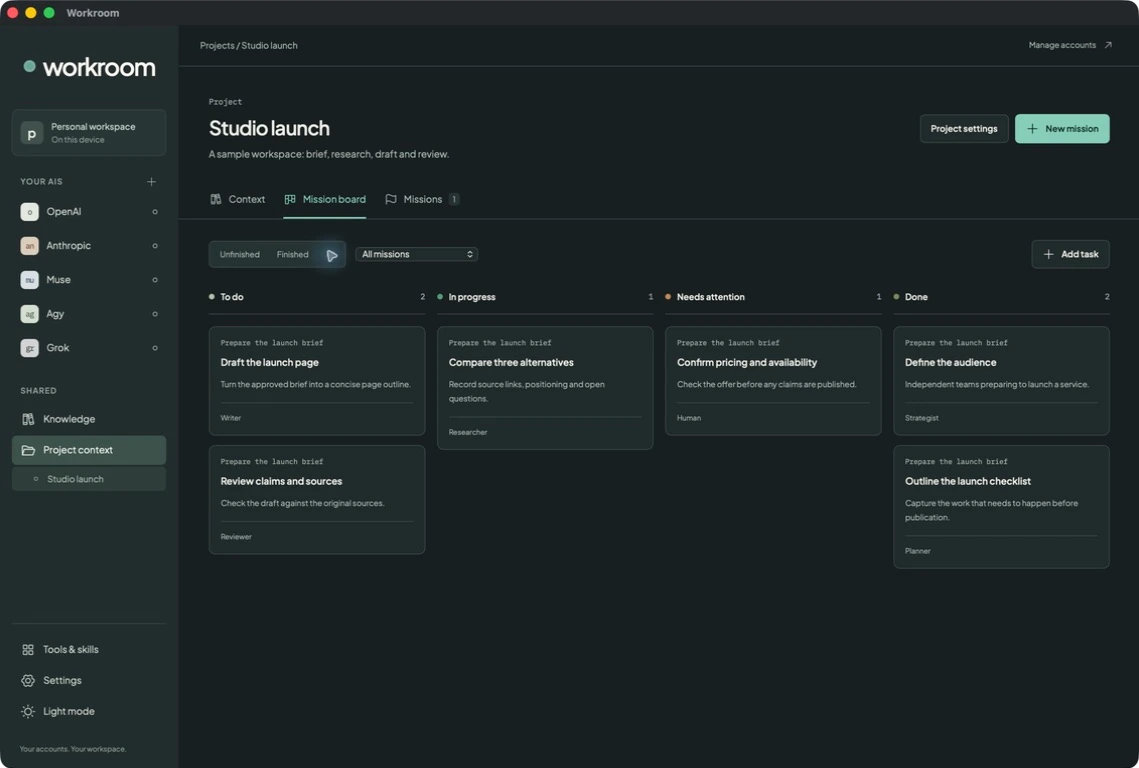
Workroom project mission board showing sample tasks organised by status and owner
A project keeps its context, missions and task board together.View full size ↗

Workroom for macOS, shown with illustrative workspace content. Example conversations and tasks are not records of live AI work.

Inside the workspace

From a conversation to work you can follow.

01

Choose the model. Keep the thread.

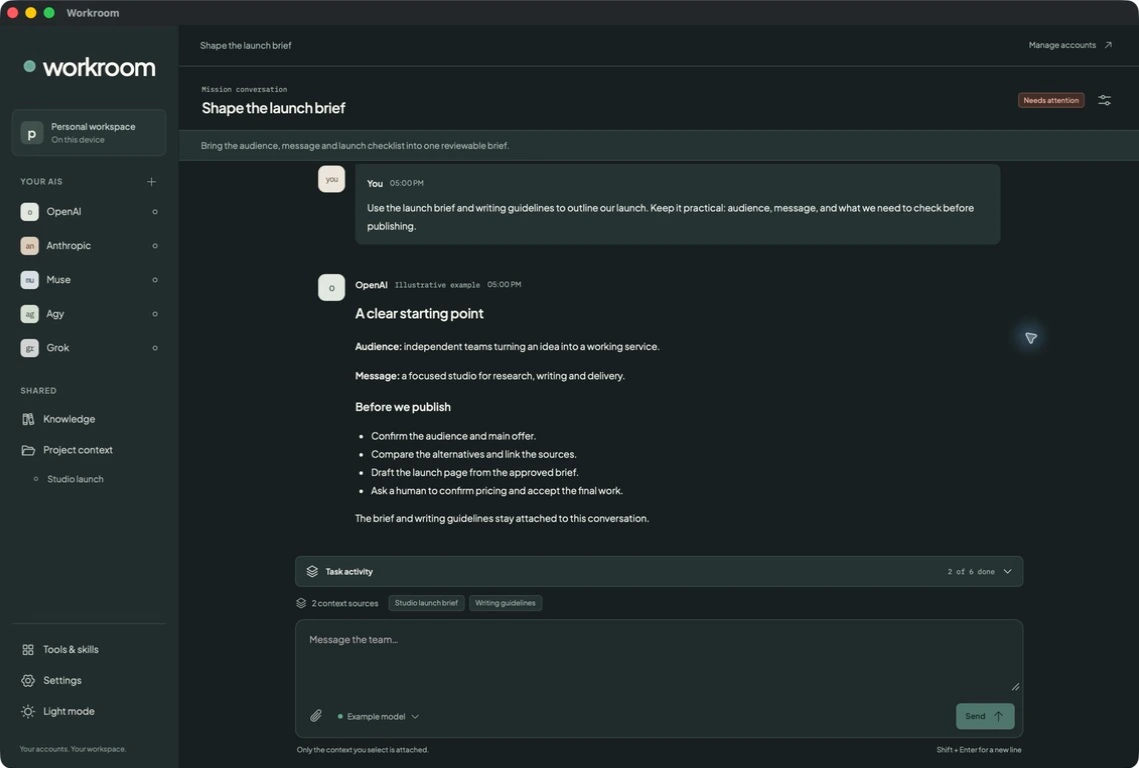
Start a direct chat or a mission conversation. Pick the model, attach files and select the knowledge it should use. Replies and tool activity stay in the conversation, with the provider and model recorded.

  • Use Quick, Balanced and Thorough presets mapped to your chosen models.
  • Let a lead delegate to other models, then inspect the tasks and results.
  • Steer work in progress or stop a run and its descendants.
Workroom conversation with illustrative messages and the model, context and task controls
One conversation, with model selection and work activity close at hand.View full size ↗
02

Give your AIs a shared starting point.

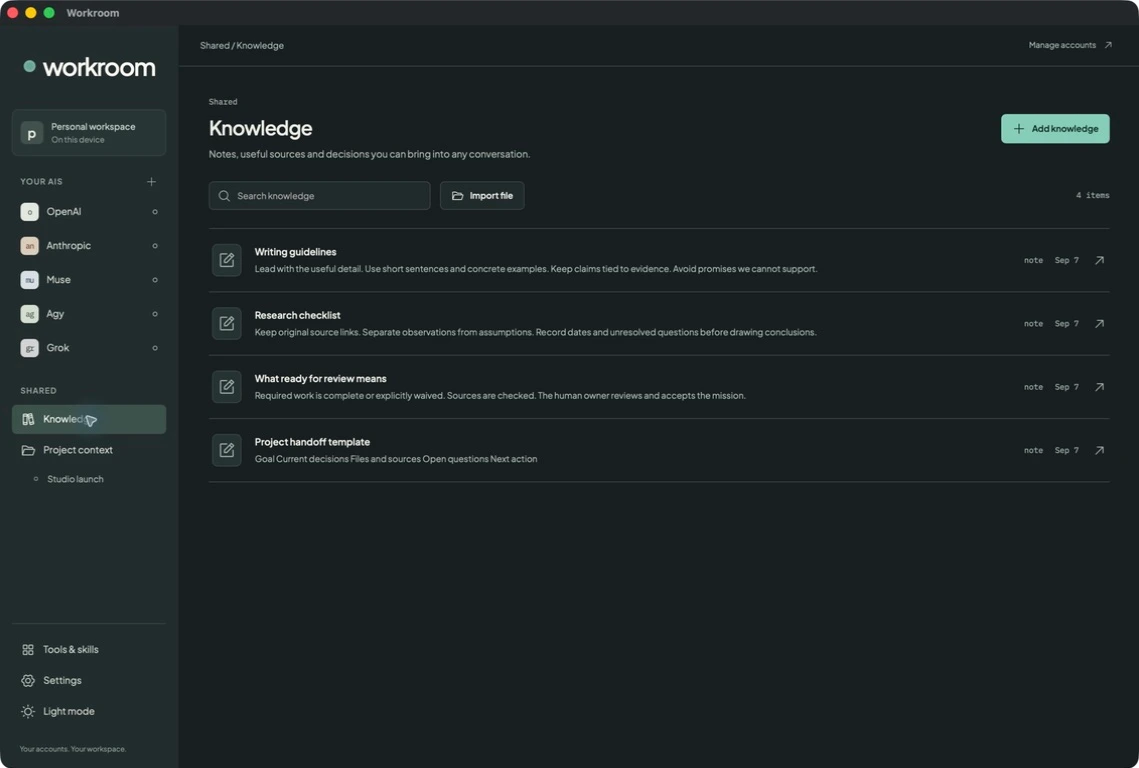
Keep reusable notes in Knowledge and project-specific material with the project. Search what you have saved, import text or Markdown, and choose which sources belong in each conversation.

  • Save a useful AI reply directly to Knowledge.
  • Reuse briefs, writing guidelines and research across conversations.
  • Select context explicitly; importing a file does not attach it to every chat.
Workroom Knowledge view with sample writing guidelines, research and review checklists
Searchable notes and source material, ready to select for the next conversation.View full size ↗
03

Decide how the work gets done.

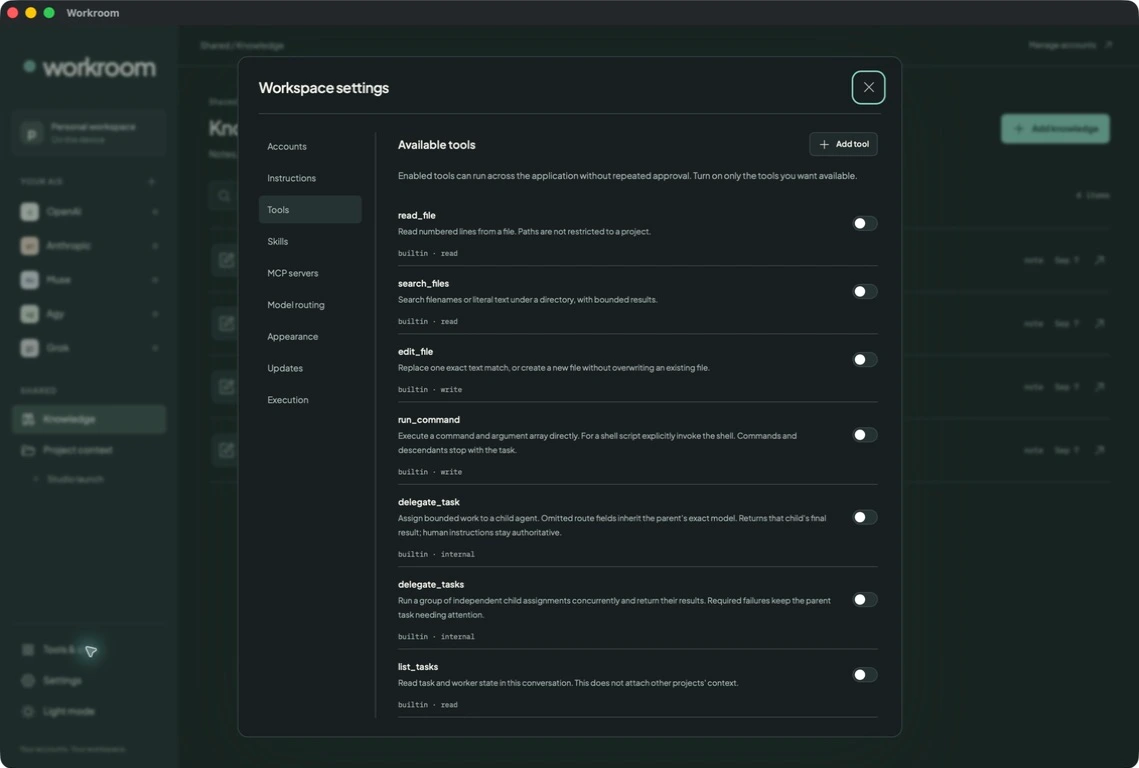
Workroom supplies the tools its models can use. Enable file reading, search, editing and command execution as needed. Add reusable skills, scoped instructions and tools from MCP servers.

  • Imported skills and discovered MCP tools start disabled.
  • Set execution limits for parallel work and delegation depth.
  • Enabled tools apply across the workspace; project folders are not a filesystem sandbox.
Workroom settings showing built-in tools and their enabled or disabled switches
Inspect the available tools and choose which ones your AIs can use.View full size ↗

Available in 0.1.8

What’s in the app today.

A closer look at the current preview. Provider and model support can vary; a connected account is the starting point for checking the workflow you need.

01Your AI accounts
Connect OpenAI, Anthropic, Muse, Agy and Grok through the account flows. Open each provider’s conversation history from the sidebar. A guided verification checklist helps you check an account and model beyond login.
02Explicit model choices
Select a model and its supported reasoning settings, or configure Quick, Balanced and Thorough presets. Historical replies retain the provider, model and settings that actually handled the work.
03Models working together
A lead can assign work to the same model, a smaller model or another provider. Follow child tasks and further delegated work, with shared limits on concurrency, depth and total descendants.
04Projects, missions and task boards
Organise tasks into To do, In progress, Needs attention and Done. Track owners, subtasks and results. When required work is ready, you review and accept the mission, with the option to reopen it.
05Knowledge and project context
Write notes, import UTF-8 text or Markdown files up to 2 MiB, and search saved material. Share a useful source across conversations by selecting it as context, or keep it with a specific project.
06Instructions at the right scope
Set guidance for the workspace, provider, agent role, project or mission. More specific human instructions take priority, with your current request above stored instructions and skills.
07Reusable skills
Import Markdown skill instructions and enable the ones you want available. Keep repeatable methods and task guidance in a reusable form, while keeping the original skill file accessible on your Mac.
08Tools and MCP connections
Use built-in tools, define command-based tools, or connect stdio and Streamable HTTP MCP servers. Inspect discovered tools before enabling them. Managed login and custom headers for remote MCP servers are not included yet.
09Steering and execution limits
Send direction while a run is active, stop a task tree, and set global and per-account concurrency limits. Interrupted work is surfaced for review rather than silently repeating uncertain actions.
10Local history and background work
Keep conversations, task records and results on your device. Closing the window lets work continue; reopen it from the menu bar. Explicit Quit stops execution and saves progress.
11A workspace that fits your screen
Choose Light, Dark or System appearance. The Mac app includes native file and folder pickers for attachments, project folders, knowledge imports and skills.
12Signed automatic updates
The Mac app checks at startup and every six hours. Verified updates download automatically, install when you quit with no work in progress, then reopen the app. You can also check and restart from Settings.
Mac preview available

Put your AIs to work.

Workroom is an evolving preview. This page reflects what is available now, and we’ll expand it as new capabilities arrive. Try it on a project and tell us what would make it more useful.

Download for Mac

Version 0.1.8 · macOS 13 or later · Apple Silicon and Intel

  1. Download the disk image and drag Workroom into Applications.
  2. Open Workroom, connect your AI accounts and choose a model.
  3. Start a chat, add the context it needs, and enable the tools you want available.

Developer ID signed and notarized by Apple. No GitHub account is needed to download or update. AI access and usage depend on your provider accounts.

Share feedback or ask a question ↗